

Azure OpenAI requires three credentials: API key, API base URL (also called base_url or endpoint), and API version. Make sure you have all three from your Azure Portal before proceeding.
Prerequisites
Before integrating Azure OpenAI with Respan, ensure you have:- An active Azure OpenAI subscription
- At least one deployed model in your Azure OpenAI resource
- Your deployment name matches those listed on our Models page
How to get your Azure OpenAI credentials
Access Azure Portal
Visit your Azure Portal OpenAI Service.You will see your deployments. Choose the deployment you want to use.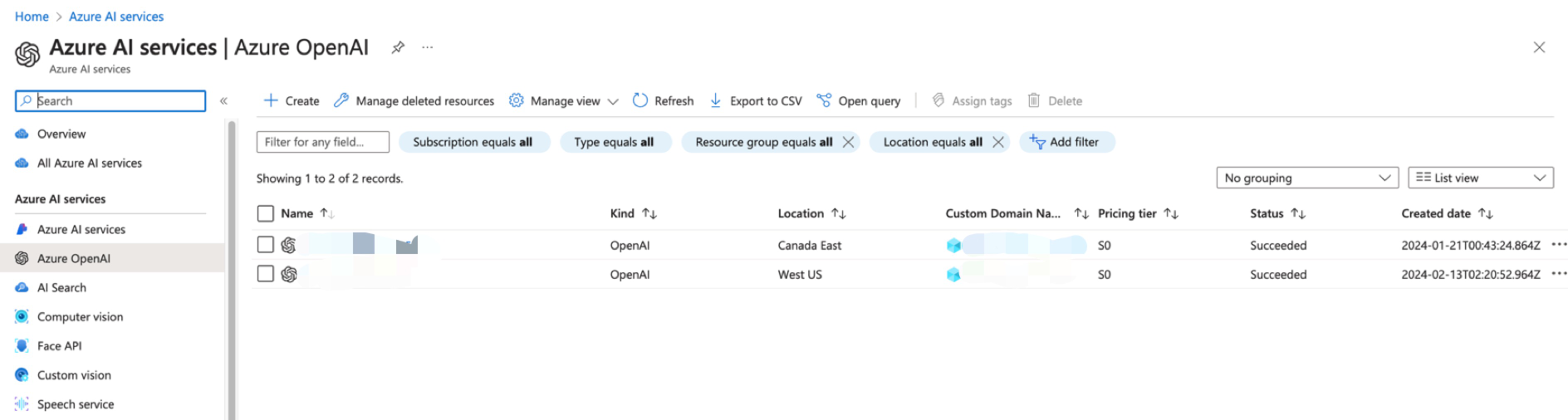
Get your API Base URL (endpoint)
Click on the “Endpoints” link to view your API base URL.
The API base URL is also called endpoint or base_url. For OpenAI, this would be
https://api.openai.com, but for Azure it’s unique to your resource (e.g., https://your-resource.openai.azure.com/).Get your API Key
Click on the “Manage Keys” link to view your API keys. You can use either Key 1 or Key 2.
Choose API Version
Pick an API version from the available Azure OpenAI versions.
Common API versions
Common API versions
2024-10-21(recommended)2024-08-01-preview2024-06-012024-02-01
Azure OpenAI models compatibility
✅ Supported Frameworks
✅ Supported Frameworks
❌ Unsupported Frameworks
❌ Unsupported Frameworks
Add Azure OpenAI credentials
There are 2 ways to add your Azure OpenAI credentials to your requests:Option 1: Via UI (Recommended)
Navigate to Providers page
Go to Providers page and select Azure OpenAI.
Add your credentials
Fill in the three required Azure OpenAI credentials: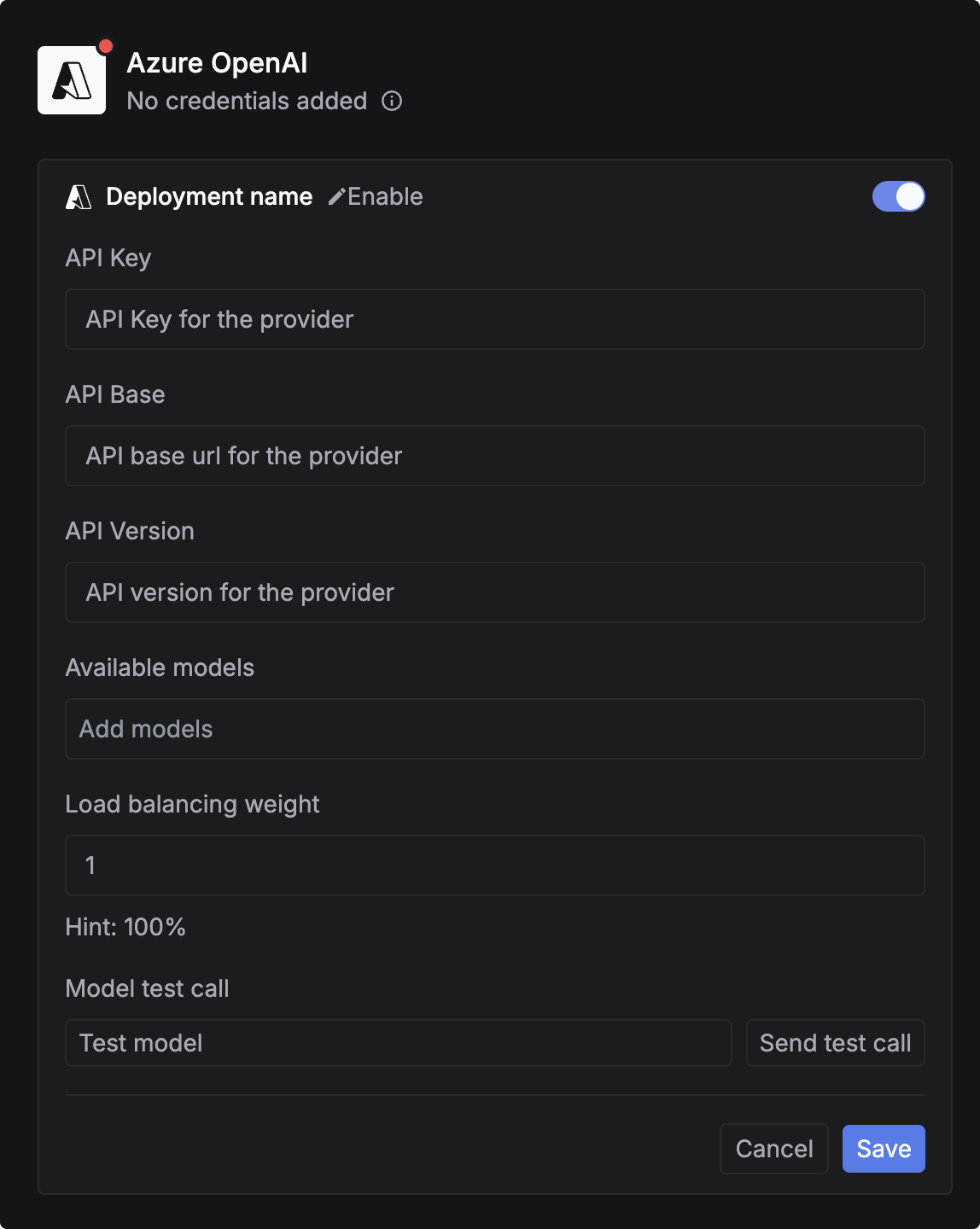
Your Azure OpenAI API key from the Azure Portal.
Your Azure OpenAI endpoint URL (also called base_url or endpoint).
What is api_base?
What is api_base?
The
api_base (synonyms: base_url, endpoint) is the base URL for your Azure OpenAI resource.Examples:- Azure OpenAI:
https://your-resource.openai.azure.com/ - OpenAI (for reference):
https://api.openai.com
Your Azure OpenAI API version (e.g.,
2024-10-21). See available versions.Map your deployment name
Azure allows custom deployment names. You need to map your deployment name so Respan knows which Azure deployment to call.Important: When testing the model, use the format 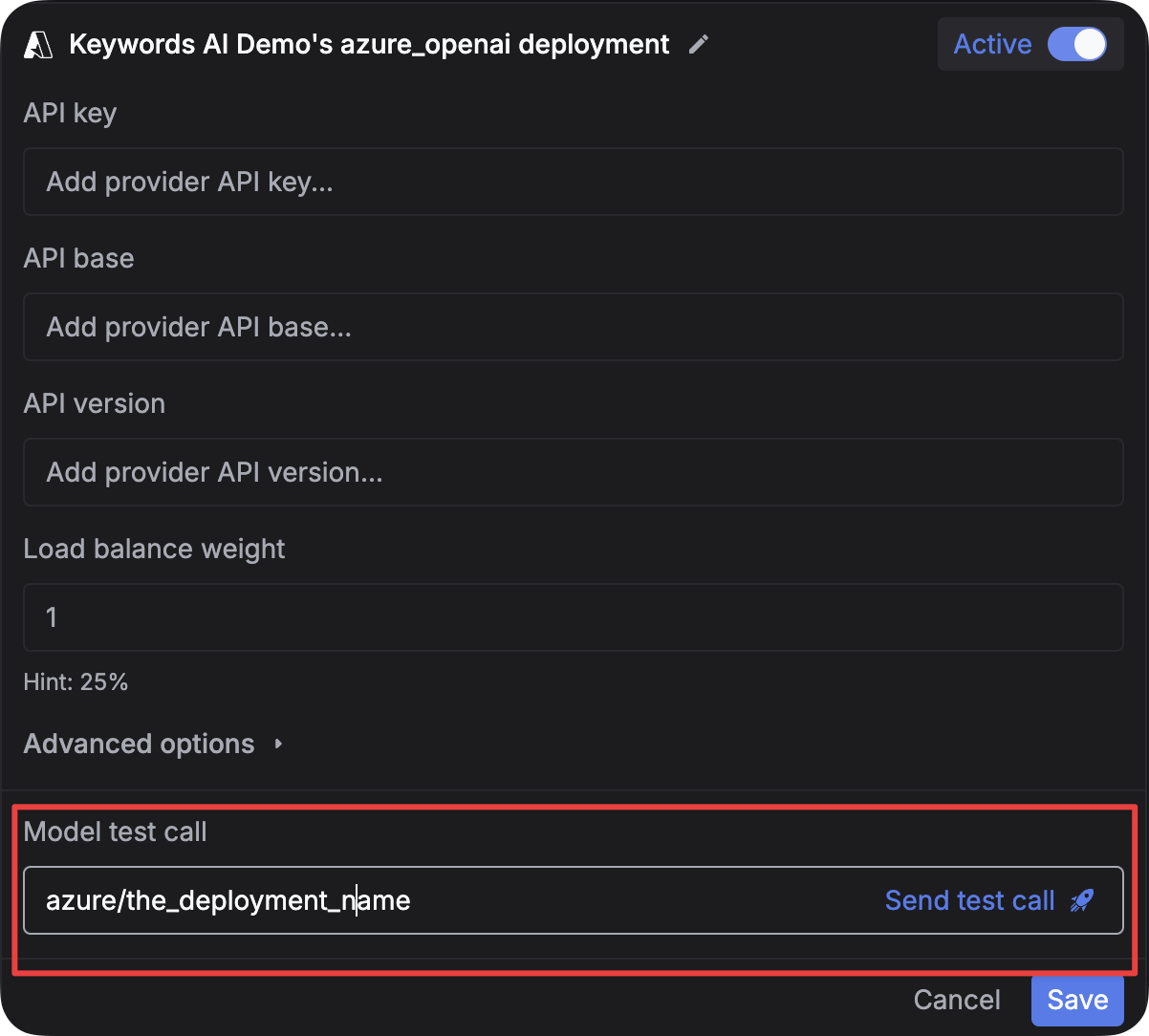
azure/{your-deployment-name} in the model test input.For example:- If your Azure deployment name is
gpt-4o, use:azure/gpt-4o - If your Azure deployment name is
my-gpt4-deployment, use:azure/my-gpt4-deployment
(Optional) Specify models to use these credentials
You can limit which models use these credentials. Leave empty to apply your credentials for all Azure OpenAI models.To specify models: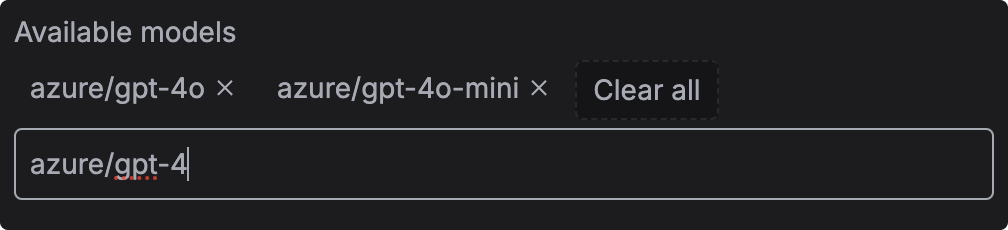
- Go to the Models page
- Copy the model ID (e.g.,
azure/gpt-4o) - Paste it in the input field
- Press
Enterto add the model
Option 2: Via Code
- OpenAI SDK
- Standard API
(Optional) Map custom deployment names
If your Azure deployment name differs from the standard model name, use
model_name_map to specify the mapping.Example: If you deployed gpt-4o with a custom name like my-gpt4-prod, map it like this:model_name_map only works when your credentials are valid.(Optional) Override credentials for specific models
You can override credentials for individual models without changing the default credentials.
(Optional) Load balance between multiple deployments
You can add multiple Azure deployments and load balance between them for better availability and cost optimization.Learn more: Load Balancing Guide
Testing your integration
Requirements and troubleshooting
Requirements
- Deployment name format: Use
azure/{deployment-name}format (e.g.,azure/gpt-4o) - Credentials match: Ensure your deployment name is correctly mapped if using custom names
- Regional availability: Confirm your models are available in the region specified by your credentials
- API version: Use a supported Azure OpenAI API version
Common issues
Error: Deployment not found
Error: Deployment not found
Cause: Your deployment name doesn’t match what’s configured in Azure.Solution:
- Check your Azure deployment name in the Azure Portal
- Use
model_name_mapto map the standard model name to your custom deployment name - Ensure you’re using the
azure/prefix (e.g.,azure/gpt-4o)
Error: Invalid credentials
Error: Invalid credentials
Cause: One or more of your Azure credentials are incorrect.Solution:
- Verify
api_keyin Azure Portal → Manage Keys - Verify
api_basematches your resource endpoint exactly (including trailing slash) - Verify
api_versionis a valid version
Model test call input is confusing
Model test call input is confusing
Issue: The “Model test call” input field is for specifying which model to test, not the message.Correct usage:
- Model test call input:
azure/gpt-4o(the model identifier withazure/prefix) - Message/chat input: Your actual message like “Hello, how are you?”
azure/gpt-4o for Azure providers, not just gpt-4o.Supported models
DeepSeek models
azure_deepseek/deepseek-v3azure_deepseek/deepseek-chatazure_deepseek/deepseek-reasonerazure_deepseek/deepseek-r1
O-series models
azure/o1azure/o3azure/o3-miniazure/o4-mini
GPT-4 series
azure/gpt-4azure/gpt-4-32kazure/gpt-4-1106-previewazure/gpt-4-vision-previewazure/gpt-4oazure/gpt-4o-miniazure/gpt-4o-2024-08-06azure/gpt-4.1azure/gpt-4.1-miniazure/gpt-4.1-nano
GPT-5 series
azure/gpt-5azure/gpt-5-mini
GPT-3.5 series
azure/gpt-35-turbo